Hilfe zu TodayToday Help

Alles, was Today kann – von den ersten Schritten bis zu Widgets, Apple Watch und Backups. Mit Bildern und kurzen Videos zum Abspielen. Everything Today can do – from the first steps to widgets, Apple Watch and backups. With pictures and short videos to play.

GrundlagenBasics

StartStart

Die vier AnsichtenThe four views

Today ordnet deine Aufgaben nach Zeit, nicht nach Ordnern. Es gibt vier Ansichten, jede mit ihrem eigenen Himmel:

Today sorts your tasks by time, not by folders. There are four views, each with its own sky:

  • Yesterday – die Aufgaben der letzten 14 Tage, erledigte und offene. Ältere findest du im Archiv.
  • Today – alles, was heute dran ist.
  • Tomorrow – morgen und alle späteren Tage, nach Tag geordnet.
  • Someday – Aufgaben ohne Datum, für irgendwann.
  • Yesterday – the tasks of the last 14 days, done and open. Older ones are in the archive.
  • Today – everything that is due today.
  • Tomorrow – tomorrow and every later day, grouped by day.
  • Someday – tasks without a date, for some day.

Mit der Sonne wechselnChanging views with the sun

Wische oben über die Sonne nach links, um weiter in die Zukunft zu gehen, nach rechts für zurück. Auf dem iPhone geht das auch mit einem Wisch vom linken oder rechten Bildschirmrand.

Swipe across the sun at the top to the left to move on into the future, to the right to go back. On iPhone a swipe in from the left or right edge of the screen does the same.

Unerledigtes mitnehmenTaking unfinished tasks along

Normalerweise bleibt eine nicht erledigte Aufgabe an ihrem Tag und erscheint dann in Yesterday. Wenn du unter Einstellungen Unerledigtes auf Heute holen einschaltest, rücken offene Aufgaben der letzten 14 Tage jeden Tag in Today nach (Vorlagen von Serien bleiben, wo sie sind).

Normally a task you didn't finish stays on its day and then shows up in Yesterday. If you turn on Bring unfinished tasks to Today in Settings, open tasks from the last 14 days move up into Today every day (series templates stay where they are).
Wisch vom Rand: Today, Tomorrow, Someday, zurück bis YesterdayA swipe from the edge: Today, Tomorrow, Someday, back to Yesterday

Eine Aufgabe anlegenAdding a task

  1. Tippe unten auf +. Der Editor öffnet sich mit der Tastatur.
  2. Schreib, was zu tun ist.
  3. Wähle über dem Dock den Tag: Someday, Today oder ein Datum. Der Editor schlägt den Tag der Ansicht vor, in der du gerade bist.
  4. Optional: Liste (oben in der Mitte), Priorität (die drei Balken rechts), Uhrzeit und Wiederholung (unten im Dock).
  5. Tippe auf den Haken, um zu sichern.
  1. Tap + at the bottom. The editor opens with the keyboard.
  2. Type what needs doing.
  3. Pick the day above the dock: Someday, Today or a date. The editor suggests the day of the view you are in.
  4. Optional: list (top centre), priority (the three bars on the right), time and repeat (in the dock at the bottom).
  5. Tap the checkmark to save.
Viele Aufgaben auf einmal? Schalte in den Einstellungen Mehrere nacheinander anlegen ein. Dann bleibt der Editor nach dem Sichern offen und leer für die nächste. Lots of tasks at once? Turn on Add several in a row in Settings. The editor then stays open and empty for the next one after saving.

Weitere Wege zum Editor: das Steuerelement „Neue Aufgabe“, Siri, und auf dem iPad ⌘ N.

Other ways into the editor: the “New Task” control, Siri, and ⌘ N on iPad.

Text, Tag wählen, sichernText, pick the day, save

Abhaken und bearbeitenChecking off and editing

  • Abhaken: Tippe auf den Kreis links. Die Aufgabe bleibt kurz stehen und rutscht dann unter die offenen. Nochmal tippen holt sie zurück. Soll sie gleich rutschen, schalte Abgehakte kurz stehen lassen in den Einstellungen aus.
  • Bearbeiten: Tippe zweimal auf den Text. Der Editor öffnet sich mit allem, was du eingestellt hast.
  • Symbole in der Zeile: ein Pfeilkreis für eine wiederkehrende Vorlage, zwei Blätter für die Kopie einer Serie, eine Büroklammer für Notizen oder Fotos.
  • Check off: tap the circle on the left. The task stays a moment, then slides below the open ones. Tap again to bring it back. To have it slide down at once, turn off Keep checked-off tasks in place in Settings.
  • Edit: tap the text twice. The editor opens with everything you set.
  • Icons in the row: circling arrows for a recurring template, two sheets for a copy of a series, a paperclip for notes or photos.
Erledigtes verschwindet nicht: Du findest es am nächsten Tag in Yesterday und nach zwei Wochen im Archiv. Done tasks don't vanish: you find them in Yesterday the next day and in the archive after two weeks.
Zwei Aufgaben abhakenChecking off two tasks

Wischen: verschieben und löschenSwiping: move and delete

Nach links wischenSwipe left

Zeigt Tomorrow (in Today) bzw. Today (in den anderen Ansichten) und den Papierkorb zum Löschen. So schiebst du eine Aufgabe mit einem Tipp auf morgen oder holst sie auf heute.

Shows Tomorrow (in Today) or Today (in the other views) and the trash can to delete. One tap moves a task to tomorrow or brings it to today.

Nach rechts wischenSwipe right

Zeigt den Kalender (Datum ändern) für jeden anderen Tag und die Büroklammer für Notizen und Fotos.

Shows the calendar (change date) for any other day and the paperclip for notes and photos.

Ganz durchwischen führt die äußere Aktion sofort aus: nach rechts öffnet es den Kalender, nach links löscht es ohne Rückfrage. Swiping all the way through runs the outer action at once: to the right it opens the calendar, to the left it deletes without asking.
Nach links: auf morgen. Nach rechts: Datum und AnhängeLeft: to tomorrow. Right: date and attachments

ListenLists

Listen sortieren deine Aufgaben nach Thema, etwa Arbeit, Zuhause, Einkauf. Sie wohnen hinter dem Rollo oben.

Lists group your tasks by topic – work, home, groceries. They live behind the blind at the top.

  1. Zieh den Griff oben am Bildschirm nach unten oder tippe darauf.
  2. Tippe auf eine Liste: Alle Ansichten zeigen nur noch sie. Alle Listen zeigt wieder alles.
  3. Neue Liste: Bei offenem Rollo wird das + unten zu „Neue Liste“. Name eingeben, optional ein Foto als Symbol, Haken.
  1. Pull the handle at the top of the screen down, or tap it.
  2. Tap a list: every view shows only it. All lists shows everything again.
  3. New list: while the blind is open, the + at the bottom becomes “New List”. Enter a name, optionally a photo as its icon, checkmark.
  • Bearbeiten: eine Liste zweimal antippen oder nach rechts wischen.
  • Löschen: nach links wischen. Das löscht auch alle Aufgaben der Liste; Today fragt vorher nach.
  • Reihenfolge: eine Liste gedrückt halten und ziehen.
  • Einklappen: In den Ansichten tippst du auf den Namen einer Liste, um ihre Aufgaben ein- oder auszuklappen.
  • Edit: tap a list twice or swipe it right.
  • Delete: swipe left. This deletes the list's tasks too; Today asks first.
  • Order: press and hold a list, then drag.
  • Collapse: in the views, tap a list's name to fold its tasks away or show them again.
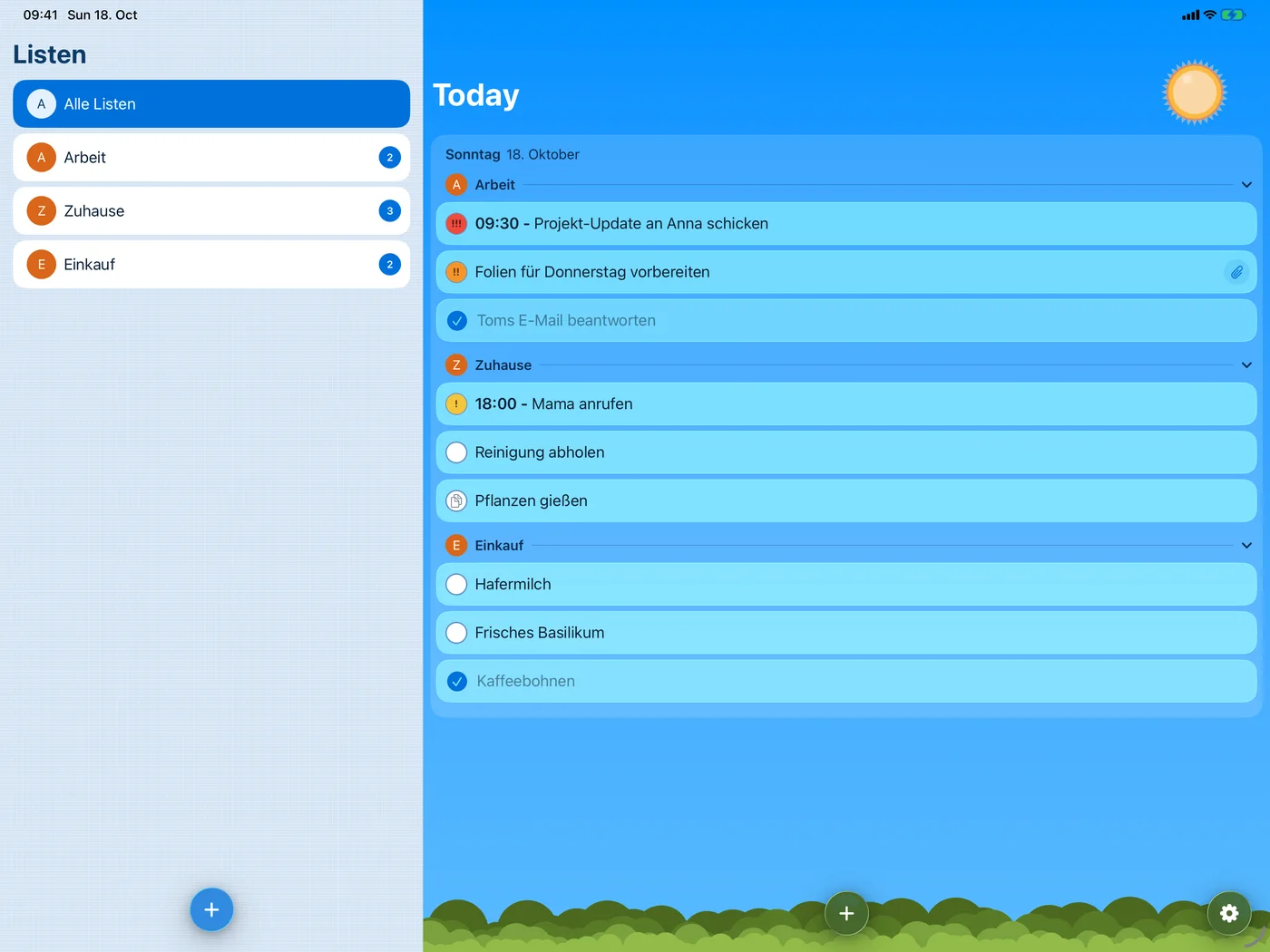
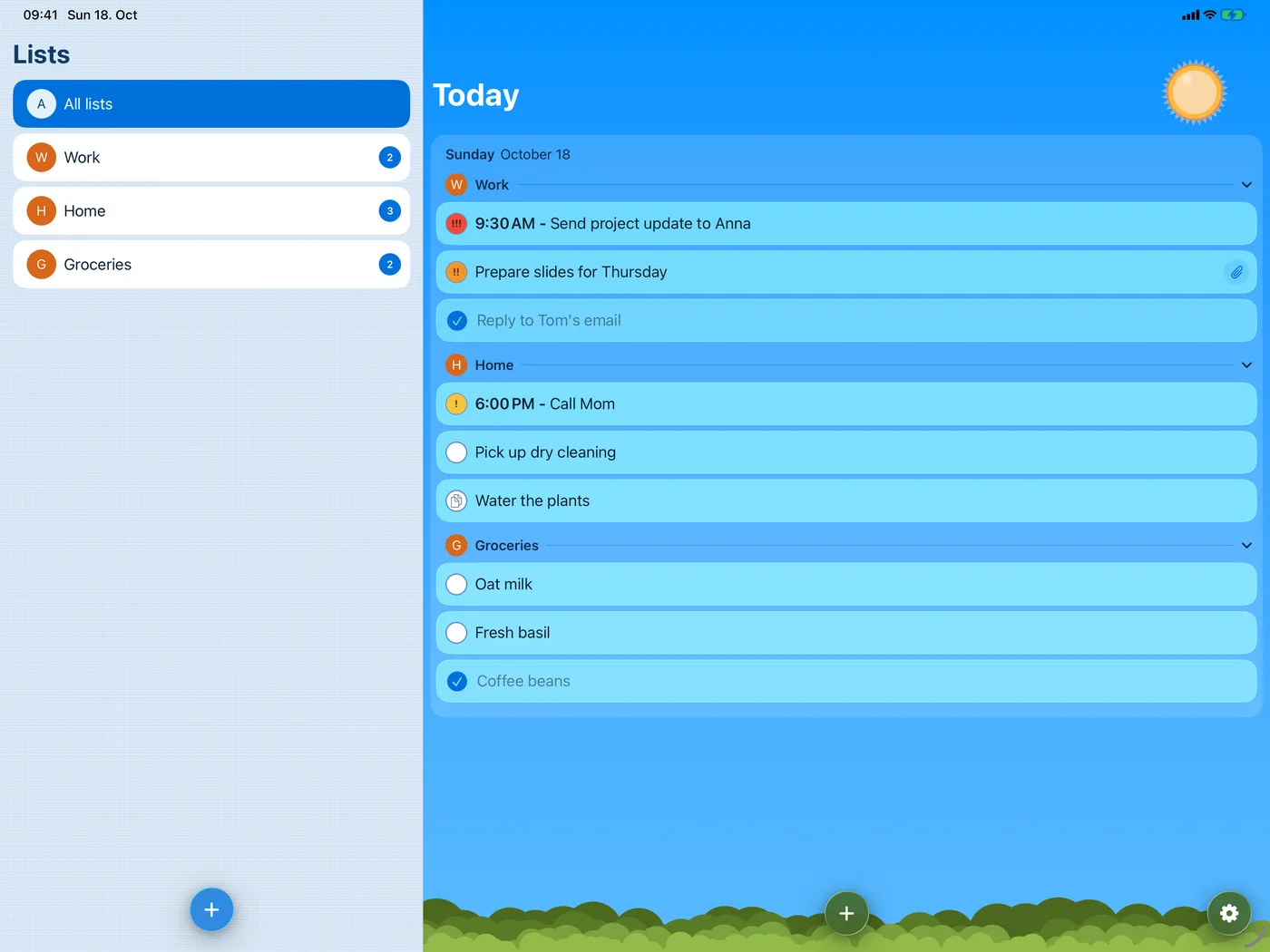
Auf dem iPad im Querformat (bei voller Breite) stehen die Listen dauerhaft links in einer Seitenleiste. On iPad in landscape (at full width) the lists stay on the left in a sidebar.
Rollo öffnen, Liste wählen, zurück zu allenOpen the blind, pick a list, back to all

Prioritäten und ReihenfolgePriorities and order

Rechts neben dem Text im Editor stehen drei Balken. Tippe oder zieh sie für Niedrig, Mittel oder Hoch; ganz nach unten für keine Priorität. In der Liste erscheint die Priorität als farbiger Punkt mit !, !! oder !!!.

To the right of the text in the editor are three bars. Tap or drag them for Low, Medium or High; all the way down for none. In the list the priority shows as a coloured dot with !, !! or !!!.

  • Nach Priorität sortieren (Einstellungen, an): Wichtiges steht oben, darunter deine eigene Reihenfolge.
  • Farben nach Priorität (aus): färbt die ganze Zeile statt nur den Punkt.
  • Umsortieren: Aufgabe gedrückt halten und ziehen. Das geht innerhalb ihrer Liste und ihres Tages, bei eingeschalteter Sortierung innerhalb derselben Priorität. In Yesterday ist die Reihenfolge fest.
  • Sort by priority (Settings, on): important tasks first, then your own order.
  • Priority highlighting (off): colours the whole row instead of just the dot.
  • Reorder: press and hold a task, then drag. This works within its list and day, and with sorting on within the same priority. Yesterday keeps its order.
Gedrückt halten, dann ziehenPress and hold, then drag

Im AlltagEveryday

AlltagDaily use

Uhrzeit und ErinnerungTime and reminder

  1. Tippe im Editor unten auf die Uhr. Today setzt die nächste volle Fünf-Minuten-Zeit und öffnet das Uhrzeit-Fenster.
  2. Dreh die Uhrzeit ein.
  3. Unter Erinnerung wählst du, wann Today dich erinnert: Zum Zeitpunkt, 5, 15 oder 30 Minuten, 1 oder 2 Stunden, 1 oder 2 Tage, 1 Woche oder 1 Monat vorher.
  4. Tippe daneben, um das Fenster zu schließen, und sichere die Aufgabe.
  1. In the editor, tap the clock at the bottom. Today sets the next five-minute mark and opens the time window.
  2. Turn the wheel to the time.
  3. Under Reminder, choose when Today reminds you: On Date, 5, 15 or 30 minutes, 1 or 2 hours, 1 or 2 days, 1 week or 1 month before.
  4. Tap beside it to close the window and save the task.

Die Uhr im Dock zeigt dann die Zeit und eine Glocke. Ohne Uhrzeit im selben Fenster nimmt Zeit und Erinnerung wieder weg.

The clock in the dock then shows the time and a bell. No time in the same window removes time and reminder again.

Damit Erinnerungen ankommen, braucht Today die Erlaubnis für Mitteilungen (iPhone-Einstellungen › Mitteilungen › Today). Das App-Symbol zeigt außerdem, wie viele Aufgaben heute offen sind. For reminders to arrive, Today needs permission for notifications (iPhone Settings › Notifications › Today). The app icon also shows how many tasks are open today.
Uhrzeit, Erinnerung 15 Minuten vorher, alle 10 Minuten erneutTime, reminder 15 minutes before, again every 10 minutes

Auf Erinnerungen reagierenAnswering a reminder

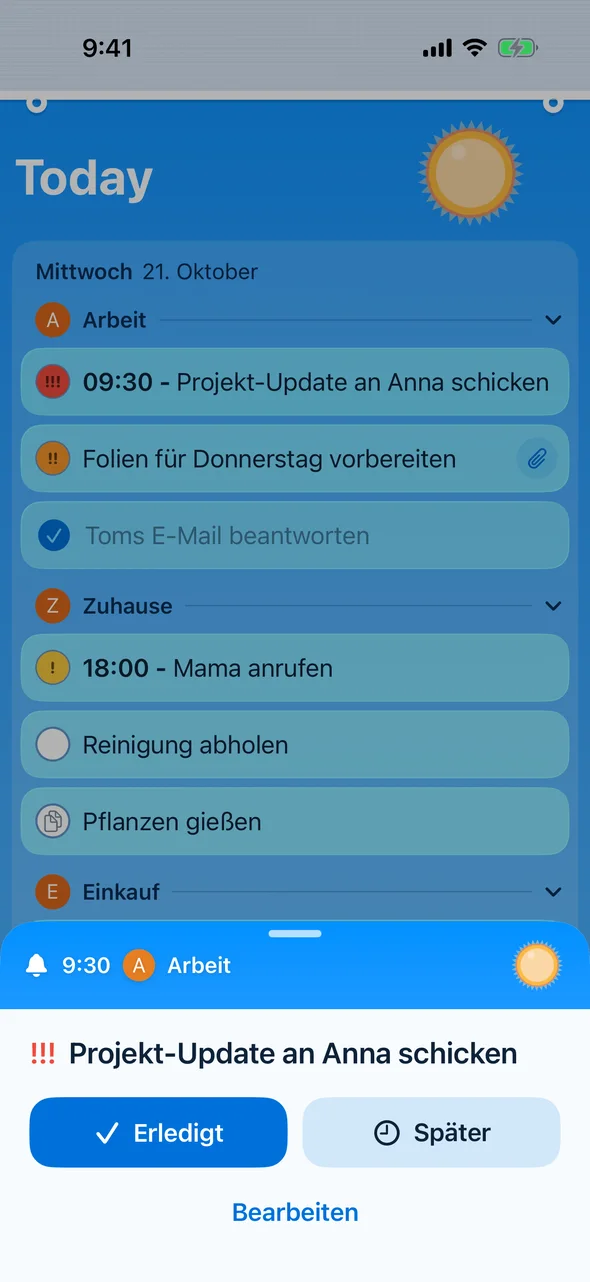
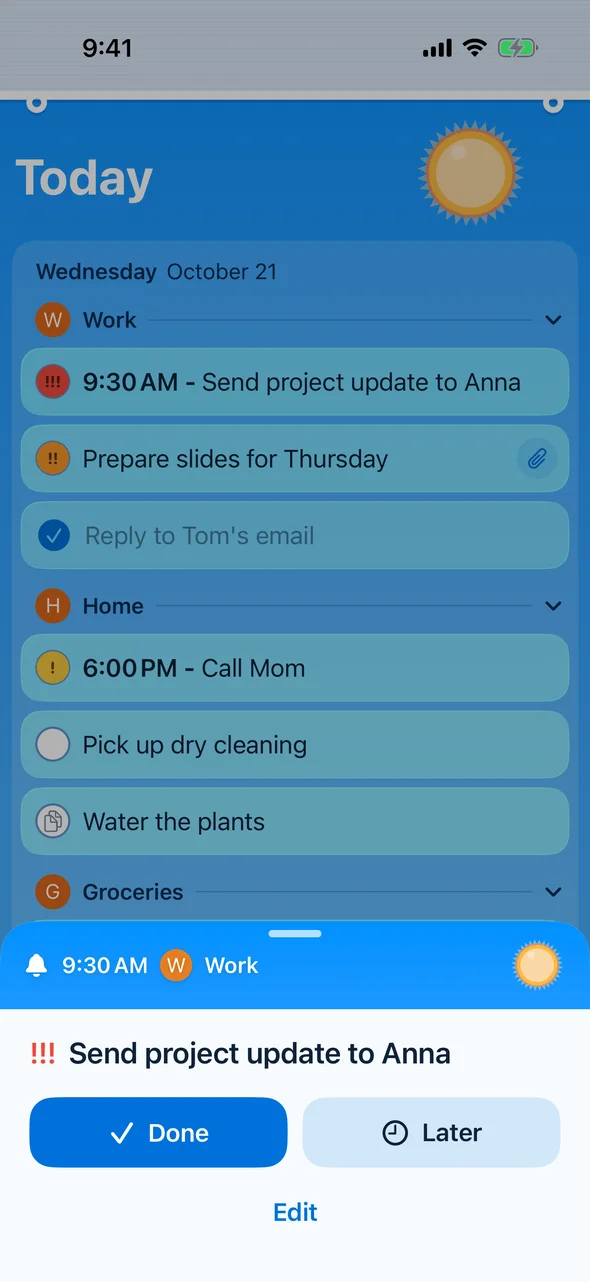
Eine Erinnerung zeigt die Aufgabe, ihre Uhrzeit und Liste. Drück lange auf die Mitteilung (oder scroll auf der Apple Watch nach unten) für die Tasten:

A reminder shows the task, its time and list. Press and hold the notification (or scroll down on Apple Watch) for its buttons:

  • Erledigt hakt die Aufgabe ab.
  • In 1 Stunde, Heute Abend · 18:00, Morgen früh · 9:00 verschieben die Aufgabe samt Erinnerung auf diese Zeit.
  • Done checks the task off.
  • In 1 Hour, Tonight · 6:00 PM, Tomorrow Morning · 9:00 AM move the task and its reminder to that time. (The times follow your clock format.)

Today zeigt nur Zeiten, die nach dem Termin liegen: Bei einer Erinnerung „1 Woche vorher“ gibt es nur Erledigt, damit dein Termin nicht nach vorn rutscht. „Heute Abend“ steht bis 17 Uhr zur Wahl.

Today only offers times after the task's own: a reminder “1 week before” offers just Done, so your appointment never moves earlier. “Tonight” is offered until 5 PM.

Tippst du auf die Mitteilung, öffnet Today ein Blatt mit der Aufgabe und den Tasten Erledigt, Später und Bearbeiten.

Tap the notification and Today opens a sheet with the task and the buttons Done, Later and Edit.

Das Erinnerungs-Blatt mit Erledigt, Später und Bearbeiten The reminder sheet with Done, Later and Edit
Nach dem Tippen auf eine ErinnerungAfter tapping a reminder

Erneut erinnernRemind again

Für Dinge, die du auf keinen Fall vergessen darfst: Im Uhrzeit-Fenster stellst du unter Erneut erinnern ein, dass Today alle 5, 10, 15 oder 30 Minuten noch einmal erinnert – höchstens sechsmal, bis du die Aufgabe abhakst oder verschiebst. Jede weitere Mitteilung sagt, die wievielte sie ist und wann die nächste kommt.

For things you must not forget: in the time window, set Remind Again so Today reminds you again every 5, 10, 15 or 30 minutes – at most six times, until you check the task off or move it. Each further notification says which one it is and when the next comes.

Die Zeile ist nur aktiv, wenn die Aufgabe eine Erinnerung hat. Im Dock zeigt die Glocke dann Wellen.

The row only works when the task has a reminder. The bell in the dock then shows waves.

Wiederkehrende AufgabenRecurring tasks

Tippe im Editor auf das Wiederholen-Symbol im Dock und wähle Täglich, Wöchentlich, Alle 2 Wochen, Monatlich, Alle 3 Monate oder Jährlich.

In the editor, tap the repeat icon in the dock and choose Every Day, Every Week, Every 2 Weeks, Every Month, Every 3 Months or Every Year.

Eigene WiederholungCustom repeat

Mit Eigene … geht mehr: alle n Tage, Wochen, Monate oder Jahre; wöchentlich an bestimmten Wochentagen (etwa Mo, Mi, Fr); monatlich am gleichen Datum, an einem Wochentag („2. Dienstag“) oder am letzten Tag.

Custom… does more: every n days, weeks, months or years; weekly on certain weekdays (say Mon, Wed, Fri); monthly on the same date, on a weekday (“2nd Tuesday”) or on the last day.

Vorlage und KopienTemplate and copies

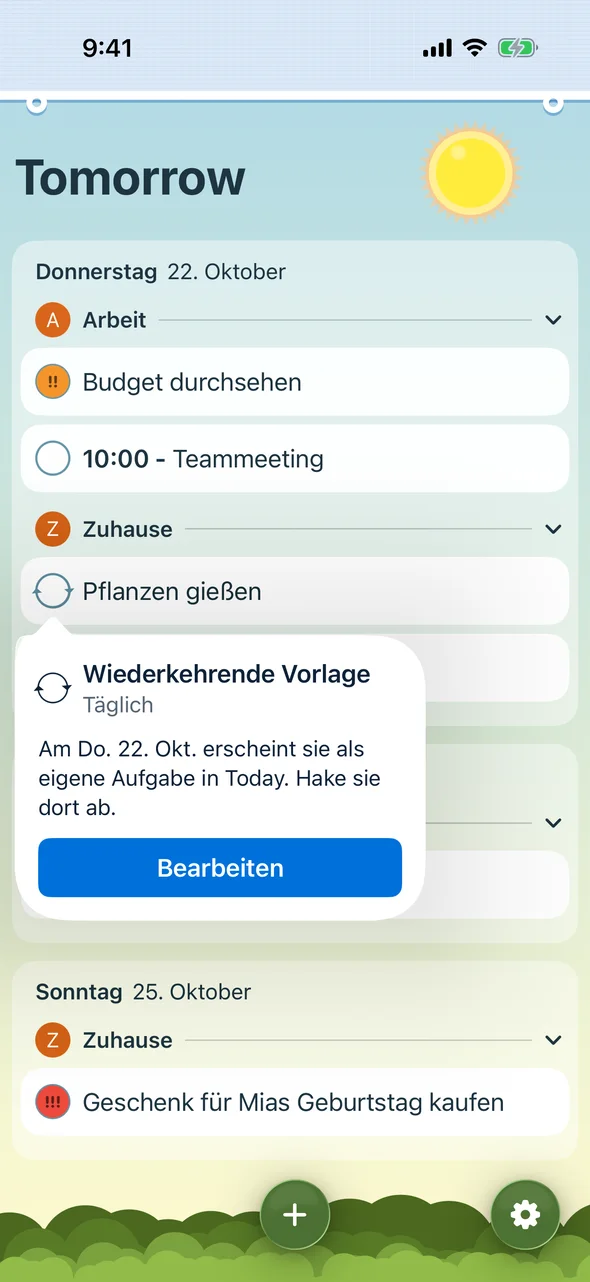
Eine Serie besteht aus einer Vorlage, die auf ihrem nächsten Termin wartet (meist in Tomorrow, mit Pfeilkreis), und einer Kopie für jeden Tag, die in Today erscheint. Abgehakt wird die Kopie. Tippst du auf den Kreis der Vorlage, erklärt Today, wann die nächste Kopie kommt.

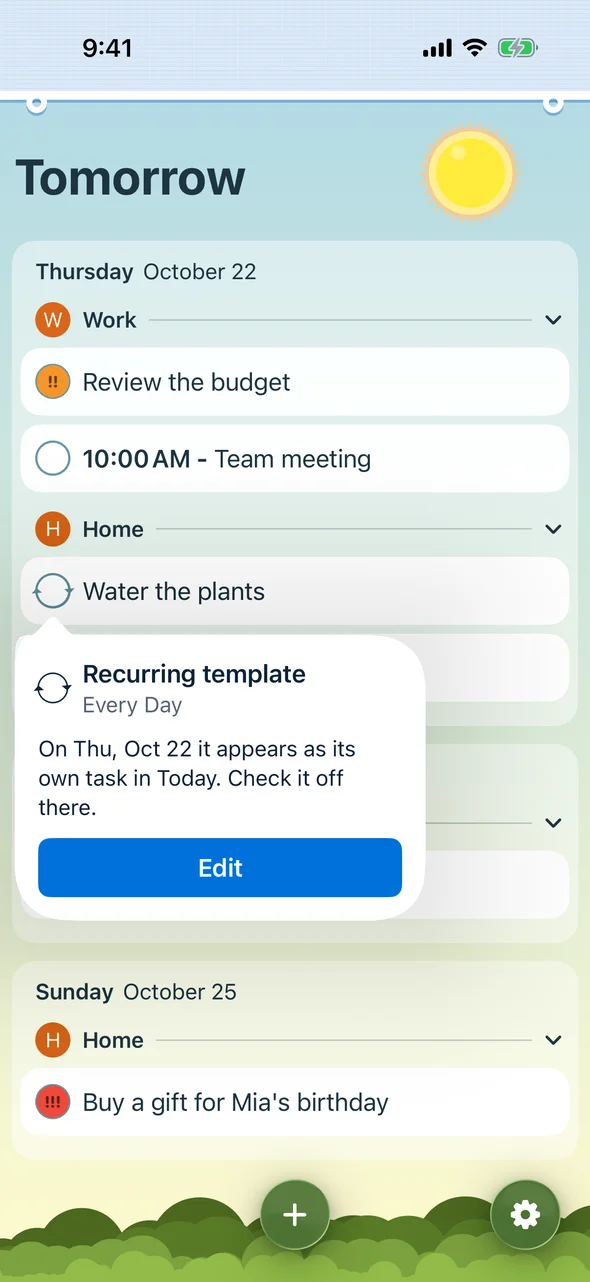
A series is a template waiting on its next date (usually in Tomorrow, with circling arrows) and a copy for each day, which shows up in Today. You check off the copy. Tap the template's circle and Today tells you when the next copy comes.

  • Serie ändern: die Vorlage bearbeiten.
  • Serie beenden: bei der Vorlage Keine wählen. Vorhandene Kopien bleiben. Löschst du die Vorlage, bleiben die Kopien auch, verlieren aber die Notizen und Fotos der Serie.
  • Change the series: edit the template.
  • End the series: choose Never on the template. Existing copies stay. If you delete the template instead, the copies stay too but lose the series' notes and photos.
Jede Woche am Montag, Mittwoch und FreitagEvery week on Monday, Wednesday and Friday
Die Vorlage einer Serie in Tomorrow mit ihrer Erklärung A series' template in Tomorrow with its explanation
Die Vorlage erklärt die SerieThe template explains the series

Yesterday und ArchivYesterday and the archive

Yesterday zeigt die letzten 14 Tage. Alles Ältere liegt im Archiv: In Yesterday unten rechts auf das Archiv-Symbol (die Kiste) tippen.

Yesterday shows the last 14 days. Everything older is in the archive: in Yesterday, tap the archive box at the bottom right.

  • Noch offen listet liegengebliebene Aufgaben. Alle auf Heute holt sie gesammelt nach Today.
  • Einzeln durchgehen zeigt sie als Karten: nach rechts wischen = auf Heute, nach oben = erledigt, nach links = löschen (mit Rückgängig).
  • Erledigt zeigt die erledigten Aufgaben nach Monat; die Leiste am Rand springt zu einem Monat.
  • Die Lupe oben durchsucht das ganze Archiv.
  • Still open lists tasks that were left behind. All to Today brings them all to Today.
  • Review one by one shows them as cards: swipe right = to Today, up = done, left = delete (with Undo).
  • Completed shows done tasks by month; the bar at the side jumps to a month.
  • The magnifier at the top searches the whole archive.
Archiv öffnen und einzeln durchgehenOpen the archive and review one by one

Notizen und FotosNotes and photos

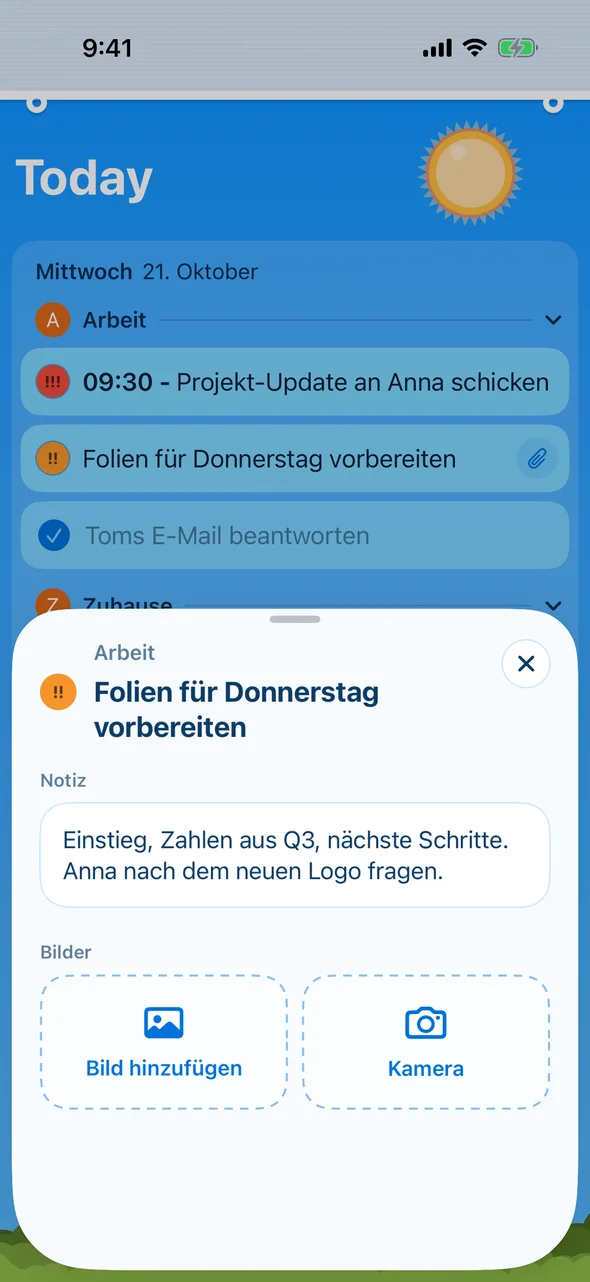
Jede Aufgabe kann eine Notiz und beliebig viele Bilder haben. Öffne sie über die Büroklammer: nach rechts wischen, die Büroklammer in der Zeile (sobald es Anhänge gibt) oder die im Editor (bei einer schon gespeicherten Aufgabe).

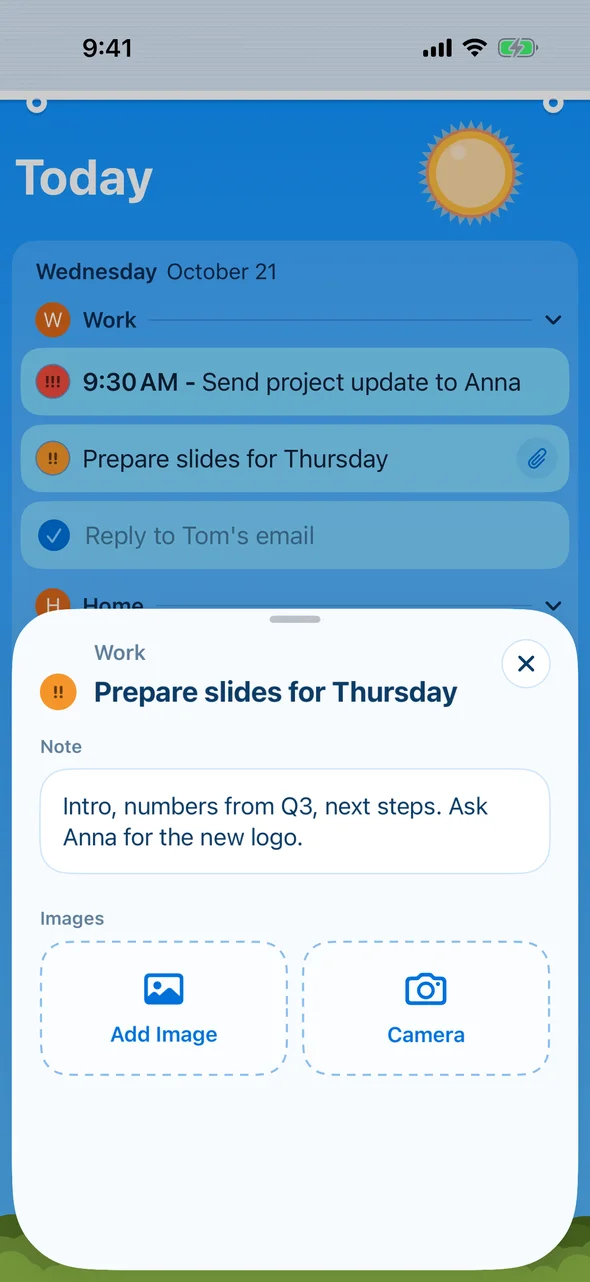
Every task can have a note and any number of images. Open them with the paperclip: swipe right, the paperclip in the row (once there are attachments), or the one in the editor (for a task already saved).

  • Notiz: direkt auf der Seite schreiben; lange Notizen klappen mit Ganze Notiz auf.
  • Bilder: Bild hinzufügen aus deinen Fotos oder Kamera. Tippen zeigt sie groß, wischen blättert, lange drücken löscht.
  • Kopien einer Serie zeigen die Anhänge ihrer Vorlage.
  • Note: write right on the page; long notes open with Show full note.
  • Images: Add Image from your photos or Camera. Tap to see them large, swipe to page, press and hold to delete.
  • Copies of a series show their template's attachments.
Die Anhänge-Seite mit Notiz und Bildern The attachments page with note and images
Notiz und Bilder einer AufgabeA task's note and images

FortgeschrittenAdvanced

MehrMore

Widgets, Sperrbildschirm und StandByWidgets, Lock Screen and StandBy

Das Widget Heute im Überblick zeigt deinen Tag ohne die App zu öffnen:

The Today Overview widget shows your day without opening the app:

  • Home-Bildschirm: klein (offene Aufgaben und Fortschritt), mittel (bis zu 3 Aufgaben), groß (bis zu 5, nach Listen). Im mittleren und großen hakst du direkt im Widget ab.
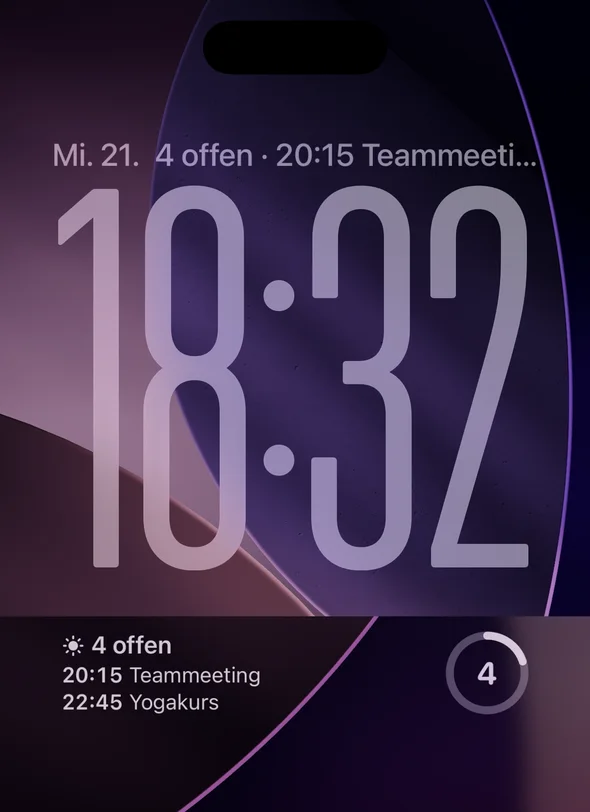
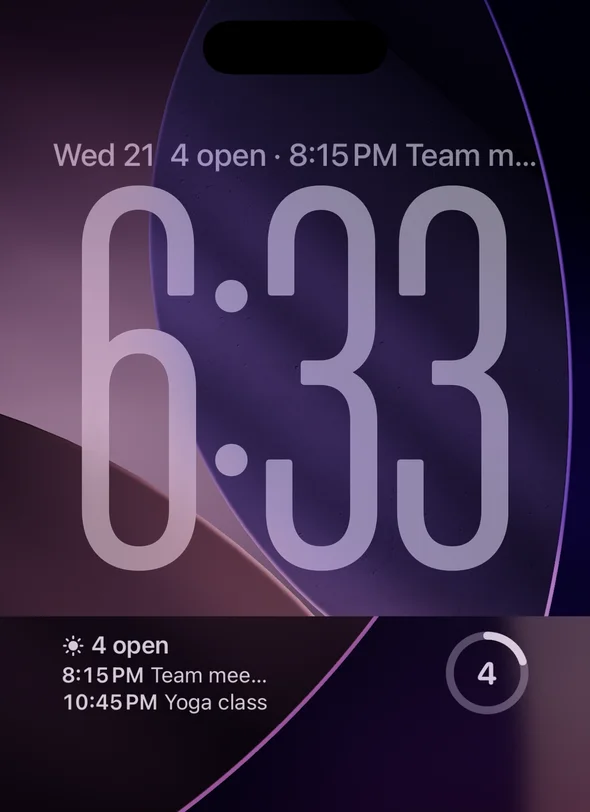
  • Sperrbildschirm: rund (offene Aufgaben im Ring), rechteckig (die nächsten Aufgaben mit Uhrzeit) und einzeilig über der Uhr. Die nächste Aufgabe wechselt zu ihrer Uhrzeit von selbst.
  • StandBy: das kleine Widget, wenn das iPhone quer am Ladekabel liegt.
  • Home Screen: small (open tasks and progress), medium (up to 3 tasks), large (up to 5, by list). In medium and large you check tasks off right in the widget.
  • Lock Screen: circular (open tasks in a ring), rectangular (the next tasks with their times) and inline above the clock. The next task moves on by itself at its time.
  • StandBy: the small widget while the iPhone lies sideways on its charger.
  1. Home-Bildschirm: lange auf eine freie Stelle drücken › Bearbeiten › Widget hinzufügen › Today.
  2. Sperrbildschirm: lange drücken › Anpassen › Sperrbildschirm › auf den Widget-Bereich (oder die Datumszeile) tippen › Today.
  1. Home Screen: press and hold an empty spot › Edit › Add Widget › Today.
  2. Lock Screen: press and hold › Customize › Lock Screen › tap the widget area (or the date line) › Today.
Sperrbildschirm mit Today einzeilig, rechteckig und rund Lock Screen with Today inline, rectangular and circular
Today auf dem SperrbildschirmToday on the Lock Screen

Kontrollzentrum und Action-TasteControl Center and Action button

Das Steuerelement Neue Aufgabe öffnet Today direkt mit dem Editor – egal, was du gerade machst.

The New Task control opens Today straight into the editor – whatever you are doing.

  • Kontrollzentrum: öffnen › lange drücken (oder + oben links) › Steuerelement hinzufügen › Today › Neue Aufgabe.
  • Sperrbildschirm: beim Anpassen eine der beiden runden Tasten unten ersetzen.
  • Action-Taste (iPhone 15 Pro und neuer): iPhone-Einstellungen › Action-Taste › Steuerelement › Neue Aufgabe.
  • Control Center: open it › press and hold (or + top left) › Add a Control › Today › New Task.
  • Lock Screen: while customizing, replace one of the two round buttons at the bottom.
  • Action button (iPhone 15 Pro and later): iPhone Settings › Action Button › Controls › New Task.

Siri und KurzbefehleSiri and Shortcuts

Today bringt Aktionen für Siri und die Kurzbefehle-App mit:

Today comes with actions for Siri and the Shortcuts app:

  • Aufgabe hinzufügen – mit Ziel (Today, Tomorrow, Someday), Liste, Uhrzeit, Erinnerung und Priorität.
  • Aufgabe erledigen – hakt eine offene Aufgabe ab.
  • Today öffnen – direkt in Today, Tomorrow oder Someday.
  • Neue Aufgabe – öffnet den Editor.
  • Add Task – with destination (Today, Tomorrow, Someday), list, time, reminder and priority.
  • Complete Task – checks off an open task.
  • Open Today – straight into Today, Tomorrow or Someday.
  • New Task – opens the editor.

Sag zum Beispiel: „Hey Siri, Aufgabe zu Today hinzufügen“ oder „Öffne Tomorrow in Today“.

For example, say: “Hey Siri, add task to Today” or “Open Tomorrow in Today”.

Apple Watch

Die Today-App auf der Apple Watch zeigt Today, Tomorrow und Someday mit der Zahl offener Aufgaben. Tippe auf eine Ansicht, dann auf den Kreis einer Aufgabe, um sie abzuhaken. Neue Aufgaben legst du auf dem iPhone an.

The Today app on Apple Watch shows Today, Tomorrow and Someday with their number of open tasks. Tap a view, then a task's circle to check it off. You add new tasks on your iPhone.

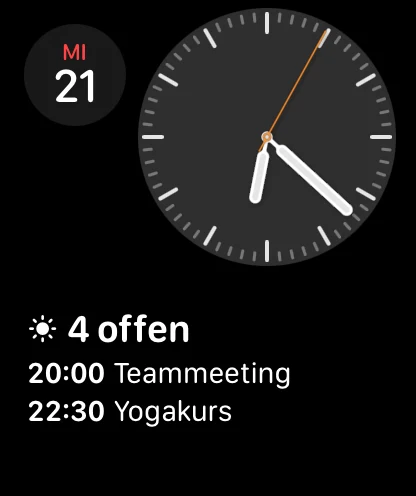
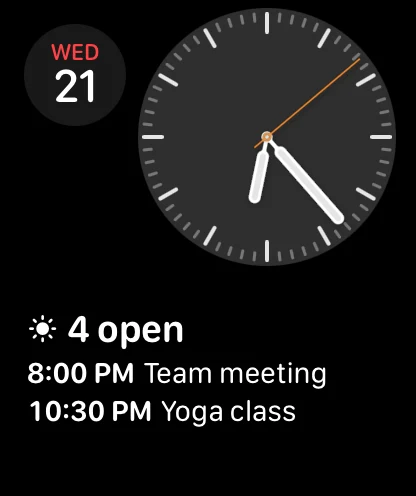
Komplikationen: lange auf das Zifferblatt drücken › Bearbeiten › zu den Komplikationen wischen › einen Platz antippen › Today. Es gibt sie rund, rechteckig (die nächsten Aufgaben mit Uhrzeit), einzeilig und für die Ecke. Ein Tippen öffnet die App.

Complications: press and hold the watch face › Edit › swipe to the complications › tap a slot › Today. They come circular, rectangular (the next tasks with their times), inline and for the corner. A tap opens the app.

Die Watch bekommt deine Aufgaben über iCloud. Ist sie nicht bei iCloud angemeldet, zeigt sie „Melde dich bei iCloud an, um deine Aufgaben zu synchronisieren.“ The watch gets your tasks through iCloud. If the watch isn't signed in to iCloud, it says “Sign in to iCloud to sync your tasks.”
Today als Komplikation auf der Apple Watch Today as a complication on Apple Watch
Die nächsten Aufgaben auf dem ZifferblattThe next tasks on the watch face

iPad und TastaturiPad and keyboard

Im Querformat bei voller Breite stehen deine Listen links, der Tag rechts. Mit einer Tastatur geht vieles schneller; ⌘ N und ⌘ 1–4 stehen auch in der Menüleiste:

In landscape at full width your lists sit on the left and the day on the right. With a keyboard much goes faster; ⌘ N and ⌘ 1–4 are in the menu bar too:

  • ⌘ N – neue Aufgabe
  • ⌘ 1 bis 4 – Yesterday, Today, Tomorrow, Someday
  • Im Editor: ⌘ S sichern, ⌘ . schließen
  • ⌘ N – new task
  • ⌘ 1 to 4 – Yesterday, Today, Tomorrow, Someday
  • In the editor: ⌘ S to save, ⌘ . to close
Today auf dem iPad im Querformat mit Listen links Today on iPad in landscape with the lists on the left

DesignsThemes

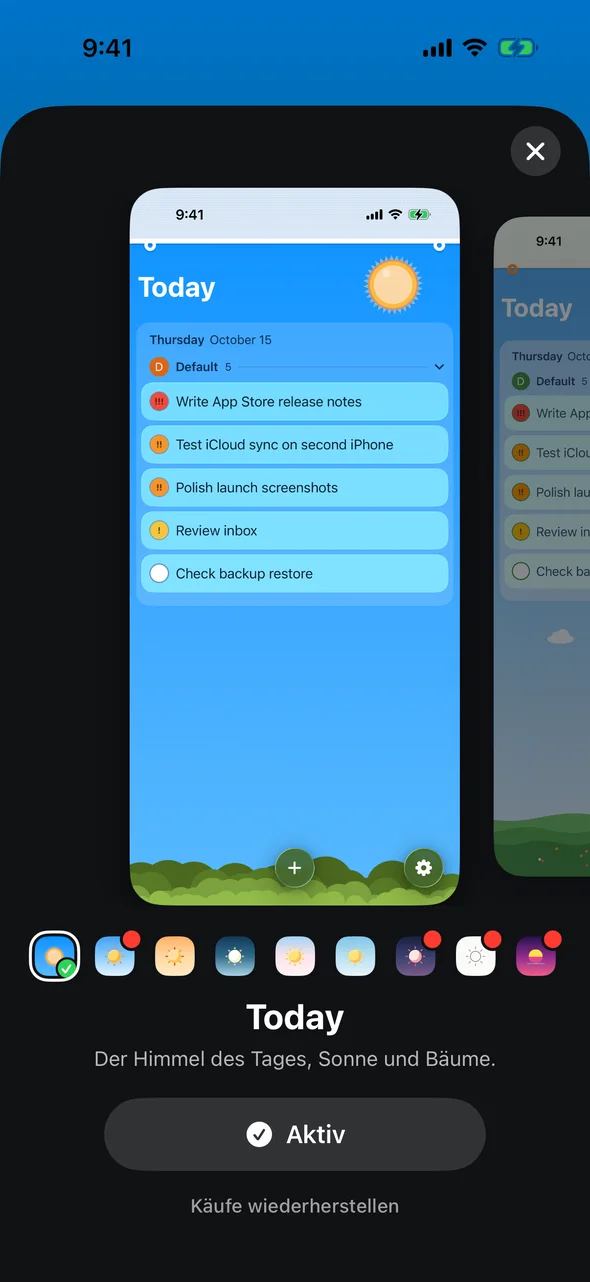
Das Design „Today“ ist kostenlos. Acht weitere – Meadow, Autumn, Winter, Spring, Ocean, Dark, Minimal und Neon – gibt es einzeln als Kauf. Öffne Einstellungen › Design, blättere durch die Vorschauen und tippe auf Theme kaufen oder Theme aktivieren.

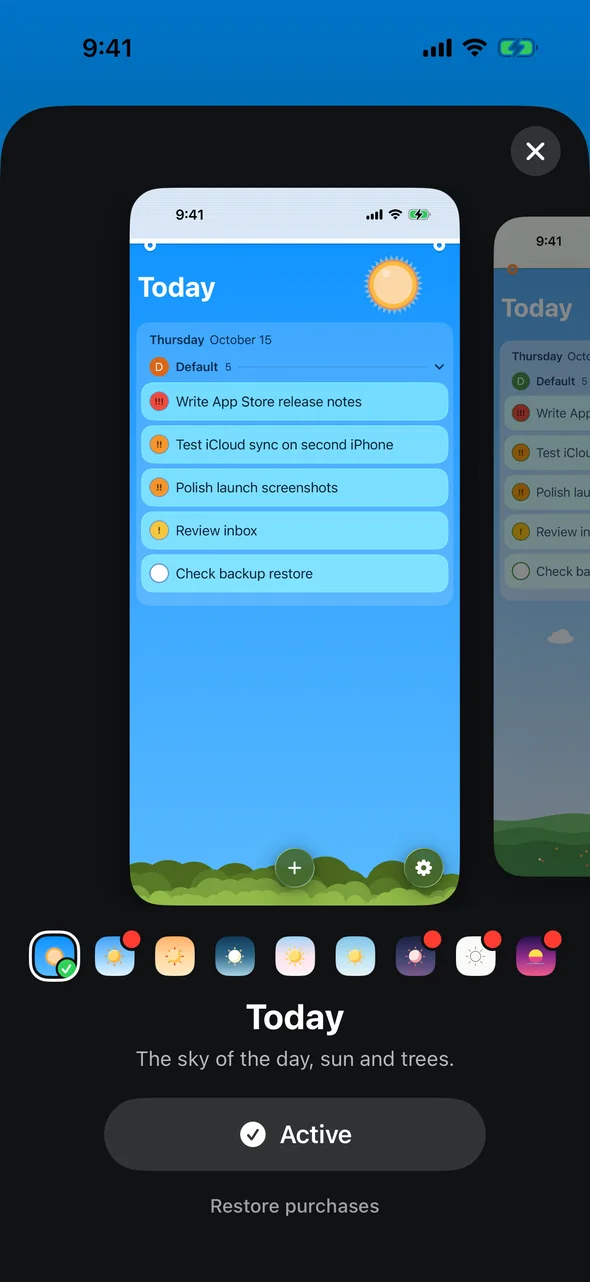
The “Today” theme is free. Eight more – Meadow, Autumn, Winter, Spring, Ocean, Dark, Minimal and Neon – are available as separate purchases. Open Settings › Theme, page through the previews and tap Buy theme or Activate theme.

Neues iPhone oder neu installiert? Käufe wiederherstellen in derselben Ansicht holt deine Designs zurück.

New iPhone or reinstalled? Restore purchases on the same screen brings your themes back.

Die Design-Galerie The theme gallery
Die Galerie in den EinstellungenThe gallery in Settings

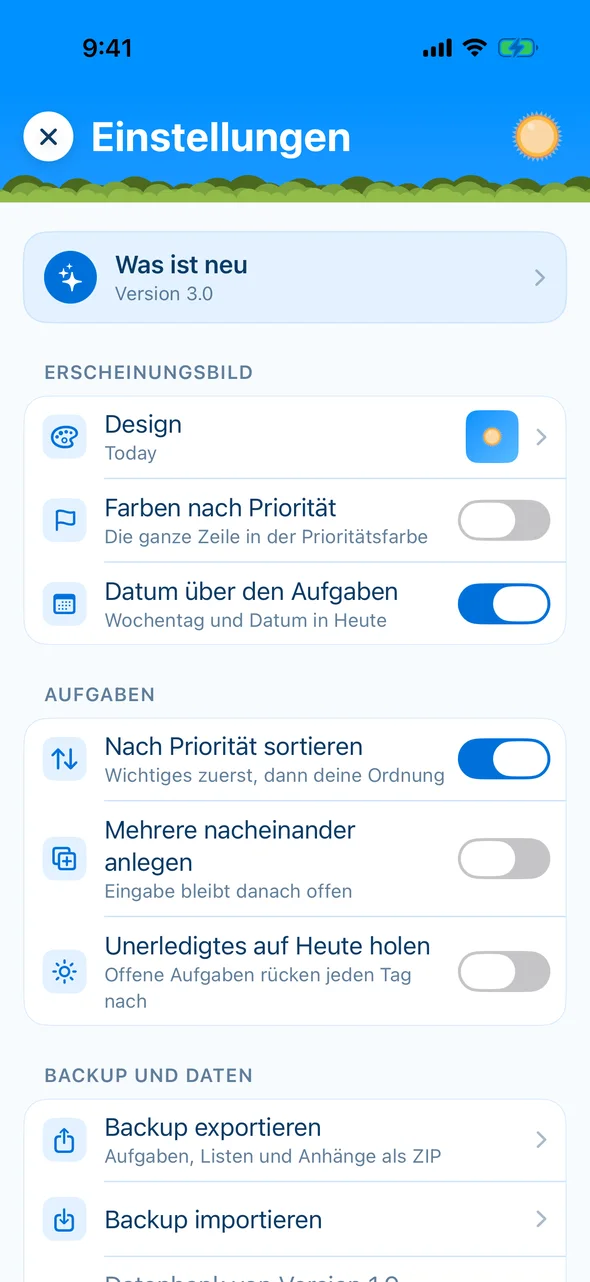
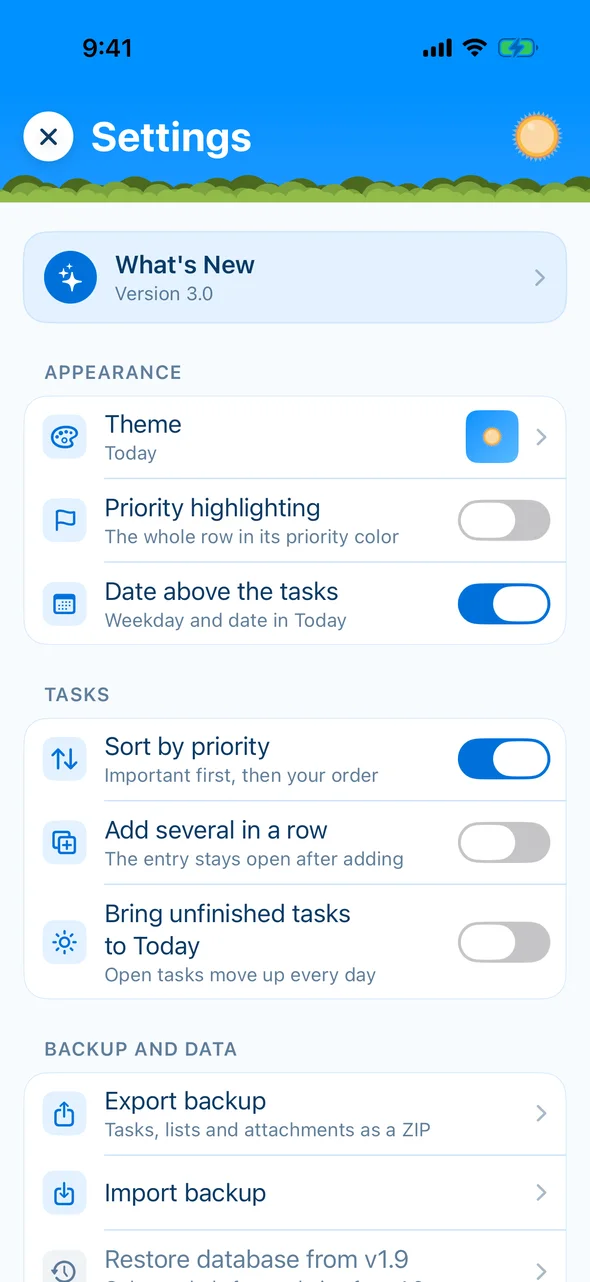
EinstellungenSettings

Das Zahnrad unten rechts öffnet die Einstellungen (in Yesterday steht dort das Archiv).

The gear at the bottom right opens Settings (in Yesterday the archive sits there instead).

  • Erscheinungsbild: Design, Farben nach Priorität, Datum über den Aufgaben (Wochentag und Datum in Today).
  • Aufgaben: Nach Priorität sortieren, Mehrere nacheinander anlegen, Abgehakte kurz stehen lassen, Unerledigtes auf Heute holen.
  • Backup und Daten: exportieren und importieren.
  • Hilfe und Kontakt: Hilfe und Tour (darin Tour erneut anzeigen), Feedback senden, Today App weiterempfehlen.
  • Ganz oben: Was ist neu in der aktuellen Version.
  • Appearance: Theme, Priority highlighting, Date above the tasks (weekday and date in Today).
  • Tasks: Sort by priority, Add several in a row, Keep checked-off tasks in place, Bring unfinished tasks to Today.
  • Backup and Data: export and import.
  • Help and Contact: Help and tour (with Show the tour again), Send feedback, Recommend Today App.
  • At the top: What's New in the current version.
Die Einstellungen Settings

iCloud und mehrere GeräteiCloud and several devices

Today braucht kein eigenes Konto. Deine Aufgaben liegen in deiner privaten iCloud und gleichen sich von selbst zwischen iPhone, iPad und Apple Watch ab, die mit derselben Apple-ID angemeldet sind.

Today needs no account of its own. Your tasks live in your private iCloud and sync by themselves between iPhone, iPad and Apple Watch signed in with the same Apple ID.

  • Prüfe in den iPhone-Einstellungen › [dein Name] › iCloud, dass iCloud für Today an ist.
  • Neue Geräte brauchen nach dem ersten Start etwas Zeit, bis alles da ist.
  • Ohne iCloud funktioniert Today genauso, nur ohne Abgleich.
  • Check in iPhone Settings › [your name] › iCloud that iCloud is on for Today.
  • A new device needs a little time after its first launch until everything is there.
  • Without iCloud, Today works just the same, only without syncing.

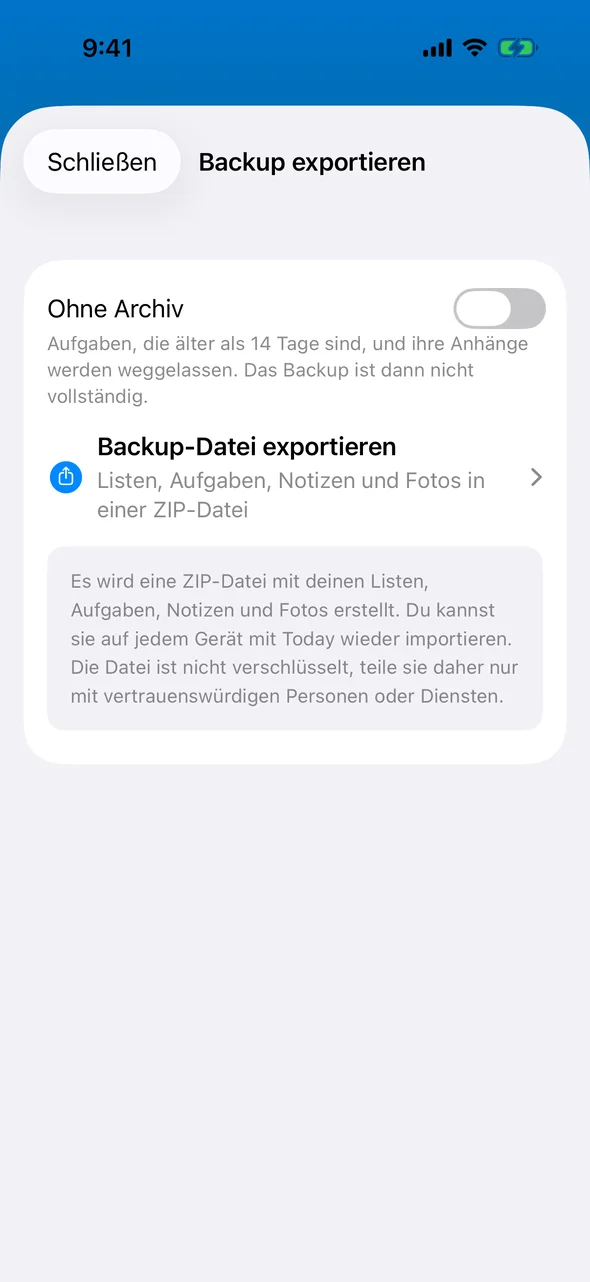
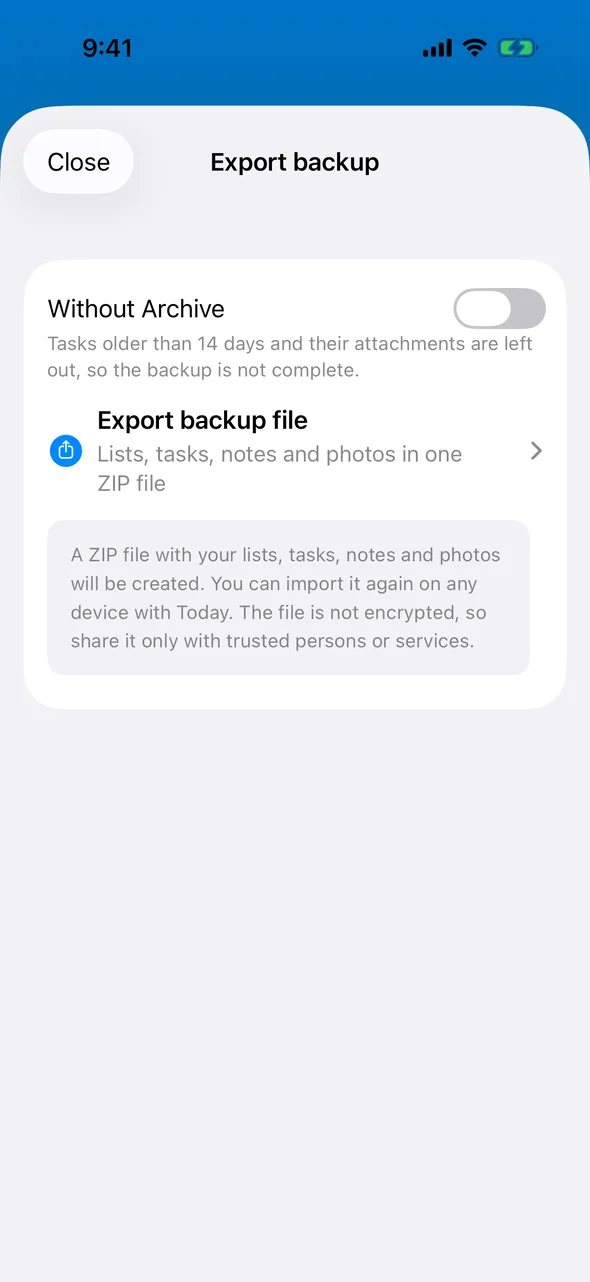
Backup und UmzugBackup and moving

  1. Einstellungen › Backup und Daten › Backup exportieren.
  2. Optional Ohne Archiv: lässt Aufgaben weg, die älter als 14 Tage sind – die Datei wird kleiner.
  3. Backup-Datei exportieren und z. B. in „Dateien“ sichern. Die ZIP-Datei enthält Aufgaben, Listen, Notizen und Bilder.
  1. Settings › Backup and Data › Export backup.
  2. Optionally Without Archive: leaves out tasks older than 14 days – a smaller file.
  3. Export backup file and save it, for example in Files. The ZIP holds tasks, lists, notes and images.

Zurückholen: Backup importieren › Sicherungsdatei auswählen. Today fügt hinzu, was fehlt; Vorhandenes bleibt und Doppeltes wird übersprungen.

Restoring: Import backup › Select Backup File. Today adds what is missing; what's there stays and duplicates are skipped.

Backup und Daten in den Einstellungen Backup and Data in Settings

Häufige FragenFrequently asked questions

Wo ist meine Aufgabe von gestern?

In Yesterday (die letzten 14 Tage), danach im Archiv. Wenn offene Aufgaben automatisch nach Today wandern sollen, schalte Unerledigtes auf Heute holen ein.

Where is yesterday's task?

In Yesterday (the last 14 days), then in the archive. If open tasks should move to Today by themselves, turn on Bring unfinished tasks to Today.

Meine Erinnerung kommt nicht.

Die Aufgabe braucht eine Uhrzeit und eine Erinnerung (so geht's), und Today die Erlaubnis für Mitteilungen: iPhone-Einstellungen › Mitteilungen › Today. Prüfe auch Fokus und „Nicht stören“.

My reminder doesn't arrive.

The task needs a time and a reminder (here's how), and Today needs permission for notifications: iPhone Settings › Notifications › Today. Check Focus and Do Not Disturb as well.

Warum sehe ich eine wiederkehrende Aufgabe zweimal?

Einmal als Vorlage auf ihrem nächsten Termin (meist in Tomorrow) und einmal als Kopie für heute. Hake die Kopie ab; die Vorlage steuert die Serie. Mehr dazu.

Why do I see a recurring task twice?

Once as the template on its next date (usually in Tomorrow) and once as today's copy. Check off the copy; the template runs the series. More about it.

Wie beende ich eine Serie?

Bearbeite die Vorlage und wähle bei Wiederholen Keine. Schon angelegte Kopien bleiben. Löschen geht auch, nimmt aber die Notizen und Fotos der Serie mit.

How do I end a series?

Edit the template and choose Never under repeat. Copies already made stay. Deleting it works too, but takes the series' notes and photos with it.

Ich habe aus Versehen etwas gelöscht.

Gelöschte Aufgaben lassen sich nicht zurückholen – nur im Archiv-Durchgang gibt es Rückgängig. Ein regelmäßiges Backup schützt dich; beim Import kommt Fehlendes zurück, ohne Doppeltes anzulegen.

I deleted something by mistake.

Deleted tasks can't be brought back – only the archive review has Undo. A regular backup protects you; importing it brings back what's missing without duplicates.

Die Apple Watch zeigt keine Aufgaben.

Die Watch bekommt alles über iCloud. Melde iPhone und Watch mit derselben Apple-ID bei iCloud an, öffne Today einmal auf dem iPhone und gib dem Abgleich ein paar Minuten.

Apple Watch shows no tasks.

The watch gets everything through iCloud. Sign iPhone and watch in to iCloud with the same Apple ID, open Today once on the iPhone and give syncing a few minutes.

Meine Geräte zeigen nicht dasselbe.

Gleiche Apple-ID, iCloud für Today an und Internet auf beiden Geräten? Dann öffne Today auf beiden – der Abgleich läuft beim Öffnen und im Hintergrund.

My devices don't show the same.

Same Apple ID, iCloud on for Today and internet on both devices? Then open Today on both – syncing runs when the app opens and in the background.

Was kostet Today?

Today ist kostenlos, ohne Werbung und ohne Abo. Nur die zusätzlichen Designs kannst du einzeln kaufen.

What does Today cost?

Today is free, with no ads and no subscription. Only the extra themes can be bought one by one.

Was passiert mit meinen Daten?

Sie bleiben auf deinen Geräten und in deiner privaten iCloud. Today hat kein Konto, kein Tracking und keinen eigenen Server für deine Aufgaben. Details in der Datenschutzerklärung.

What happens to my data?

It stays on your devices and in your private iCloud. Today has no account, no tracking and no server of its own for your tasks. Details in the privacy policy.

Noch Fragen? Schreib uns an support@today-app.de – oder in der App über Einstellungen › Feedback senden. Still have questions? Write to support@today-app.de – or in the app via Settings › Send feedback.